
Docs
How HQ's client documents look: estimates, proposals written as documents, policies and other PDFs. They're made from one HTML template, so every document shares the same cover, pages and type. Start from the template rather than styling a document by hand.
Examples
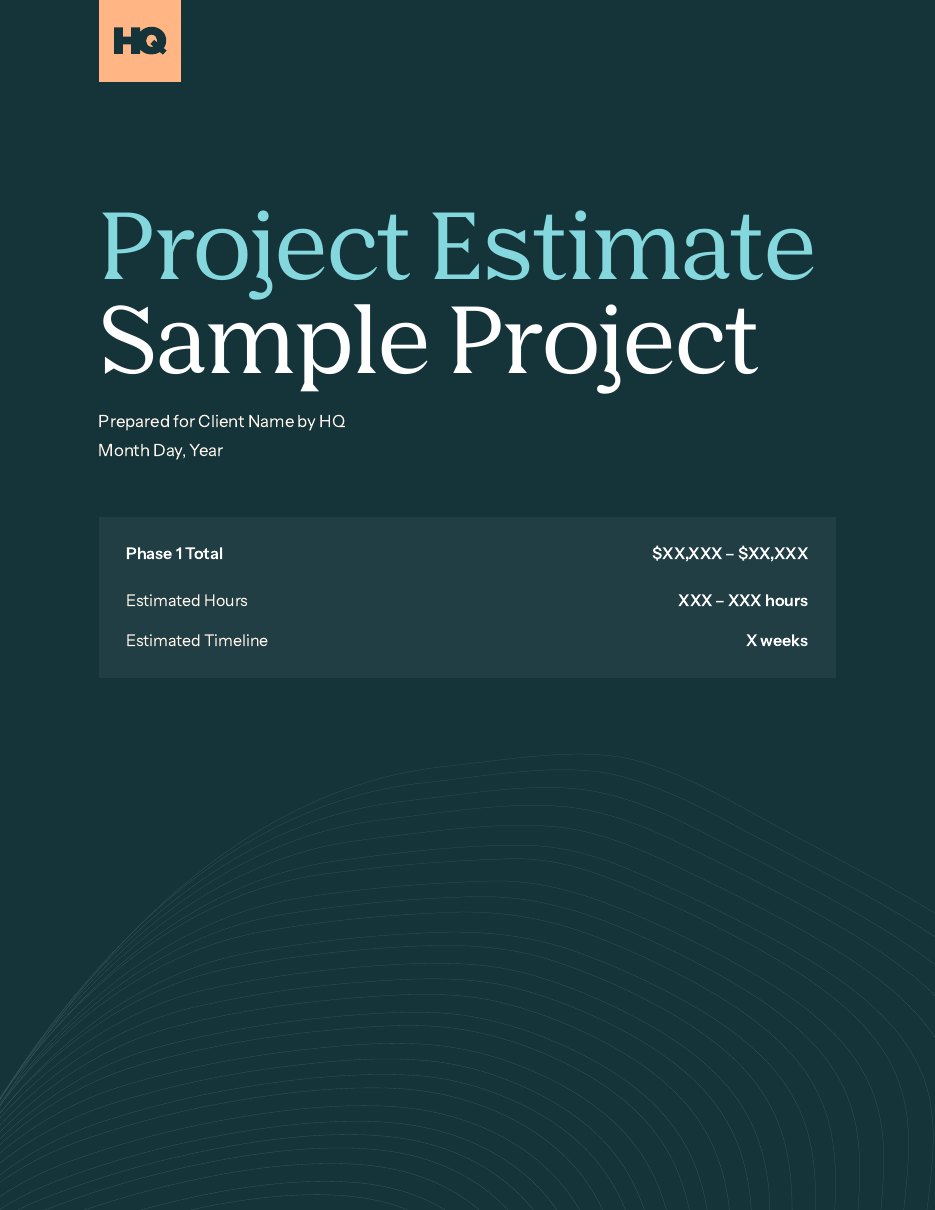
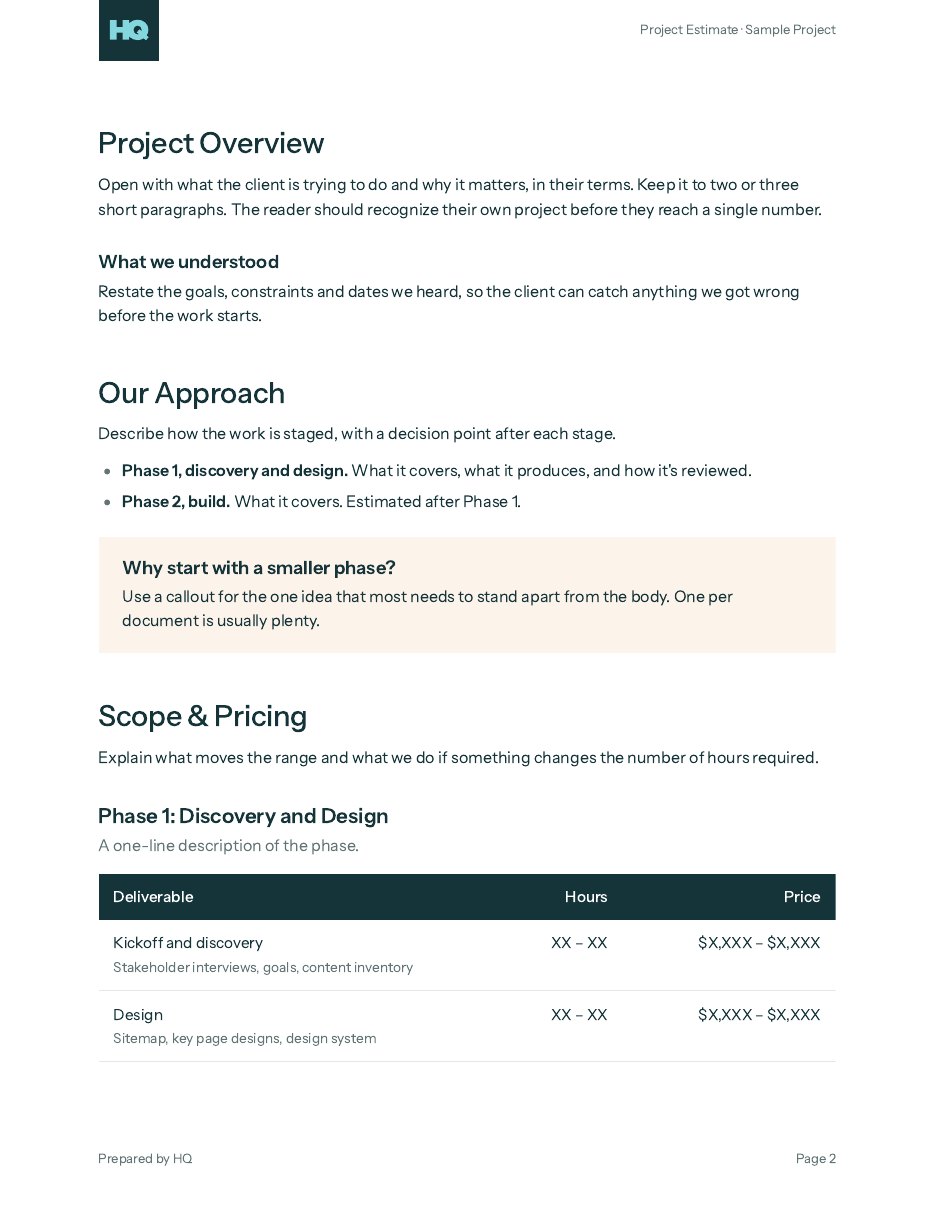
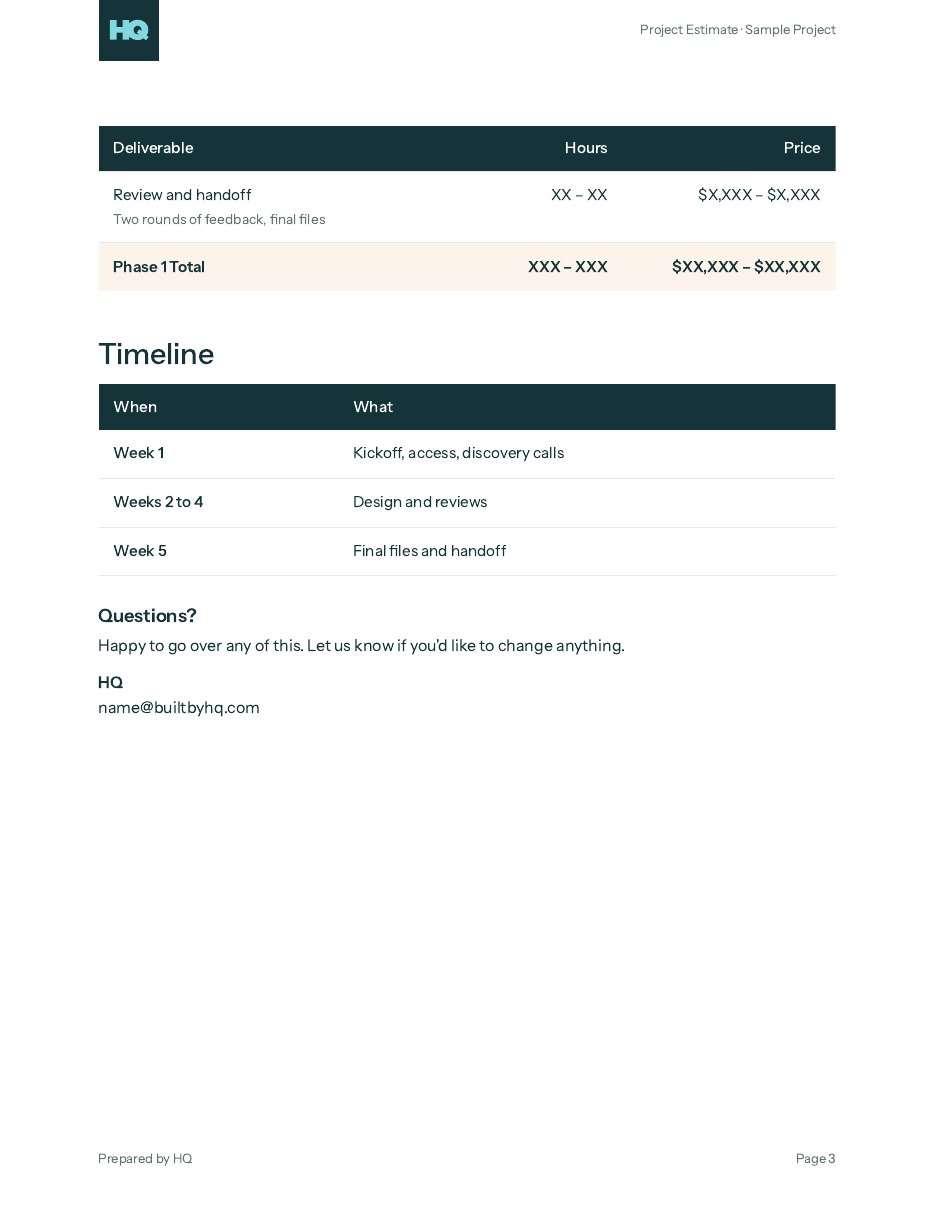
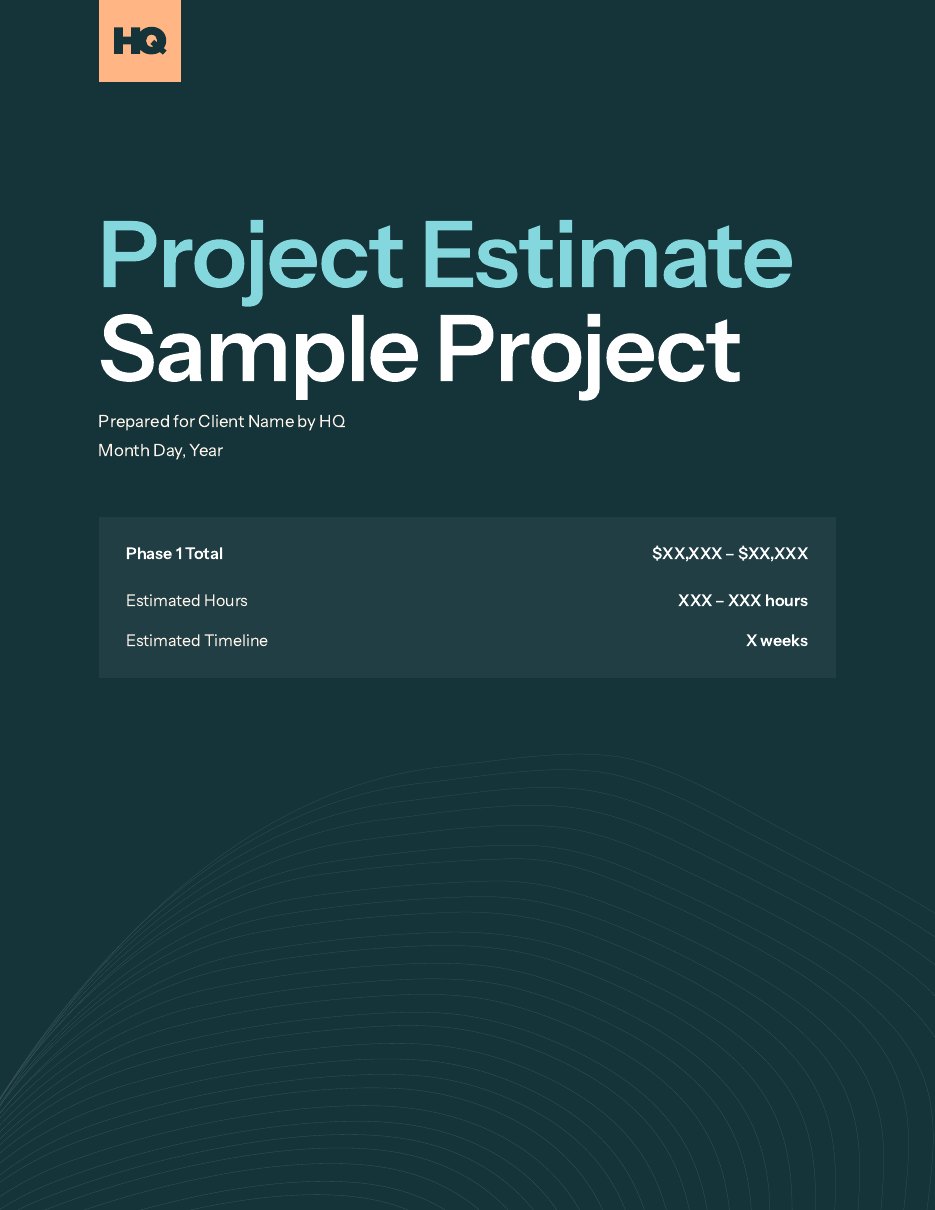
A sample estimate with placeholder content. Click a page to see it larger.
Format
- US Letter, printed to PDF by Chrome from HTML.
- One shared stylesheet for every document. A document file holds only its content, so a style change applies everywhere.
- Instrument Sans for everything except the cover title.
Cover
- Background: full bleed Deep Sea Dark, with no header or footer.
- Logo: the Orange square with Deep Sea Dark letters, flush to the top edge of the page and lined up with the text column.
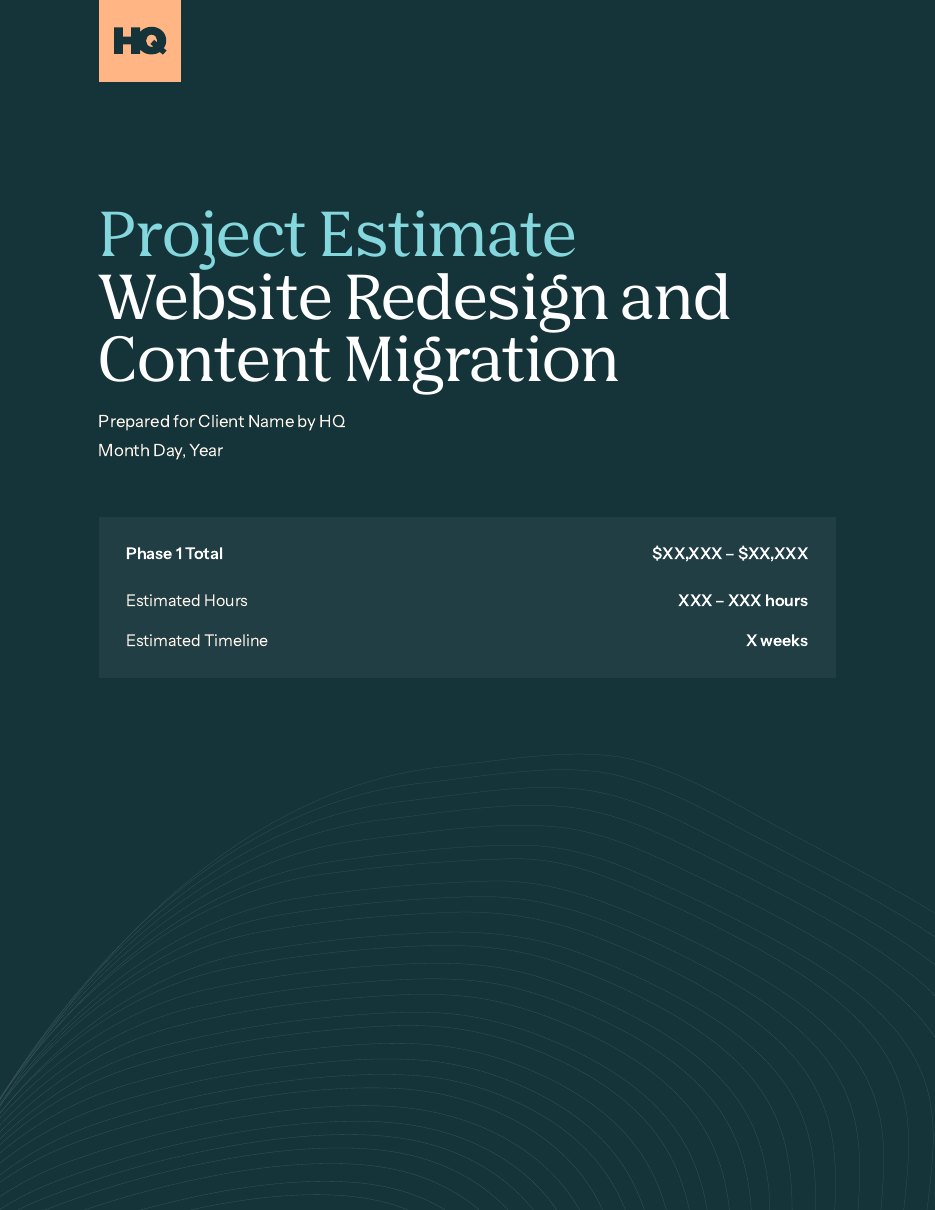
- Title: left aligned, the document type in Sky Blue over the document name in white. Nib Pro SemiBold when it's installed on the machine making the PDF, otherwise Instrument Sans SemiBold.
- Title size: 60pt. If a title runs past two lines, it steps down to 52, 44, then 40pt, using the first size that fits in two lines, and stops at 40pt.
- Details: right under the title, "Prepared for Client by HQ" and the date on the next line. No "Date:" or "Prepared by:" labels.
- Summary panel: the key numbers, the full width of the text column, on a faint white fill (5%) with no outline and no row lines. The total row is bold, at the same size as the rows below it.
- Wave: Wave 01 from the Assets tab, in white at 15%, behind the text. It keeps its natural proportions at 180% of the page width, so it runs past both side edges. The top of its curve sits just below the three-fifths line, clear of the summary panel. Never crop the top of the wave.
Inside pages
- Header: the primary logo (Sky Blue on Deep Sea Dark), flush to the top edge and lined up with the text column, with the document type and name at the top right.
- Footer: "Prepared by HQ" at the left and the page number at the right.
- No rules: no lines under the header, above the footer, under headings or across the page. Space separates sections.
- Margins: 1.15in top, 0.9in sides, 0.85in bottom.
Type
| Style | Size | Weight | Font |
|---|---|---|---|
| Cover title | 60pt, stepping down to 40pt | Semibold | Nib Pro when installed, otherwise Instrument Sans |
| Section heading | 19pt | Medium | Instrument Sans |
| Subheading | 12pt | Semibold | Instrument Sans |
| Body | 10.5pt, 1.55 line height | Regular | Instrument Sans |
| Secondary | 8.5 to 10pt | Regular | Instrument Sans, in #627474 |
The secondary gray (#627474) is 4.9:1 on white, so it reads easily while staying a clear step lighter than the body text. Use bold inside body text sparingly, for a lead-in at the start of a list item.
Color
| Color | Hex | Used for |
|---|---|---|
| Deep Sea Dark | #153439 | Cover background, body text, table header rows |
| Sky Blue | #84D7DC | Document type on the cover |
| Orange | #FFB584 | Logo square on the cover |
| Secondary gray | #627474 | Table details, captions, header and footer text |
| Line gray | #E6E6E6 | Table row lines |
| Sand | #FCF3EB | Callouts and table total rows |
Tables
- Header row: Deep Sea Dark fill with white text.
- Rows: a thin light gray line between them. No lines between columns and no outer border.
- Numbers right aligned. A short description under a row's name goes in the secondary gray.
- A total row: Sand fill, bold, and no line below it.
- Long tables break across pages with the header row repeated.
Callouts
A Sand panel for the one idea that most needs to stand apart from the body. One per document is usually plenty. No colored stripe down the left edge.
Keep it minimal
The Marketing tab's "Avoiding a Claude look" applies to documents too: few styles, no decorative icons, no numbers you can't source, and plain copy.
Making a document
The template needs Node and Google Chrome. Copy docs/sample.html, set the document type and title in the two comments at the top, replace the content, and render it. The PDF lands in out/.
npm install
node render.mjs docs/<name>.htmlWith Claude, install the hq-docs skill from the Skills tab and ask for the document. The template also lives in the marketing repo at apps/brand/docs-template/, next to the rules in apps/brand/hq-docs.md.